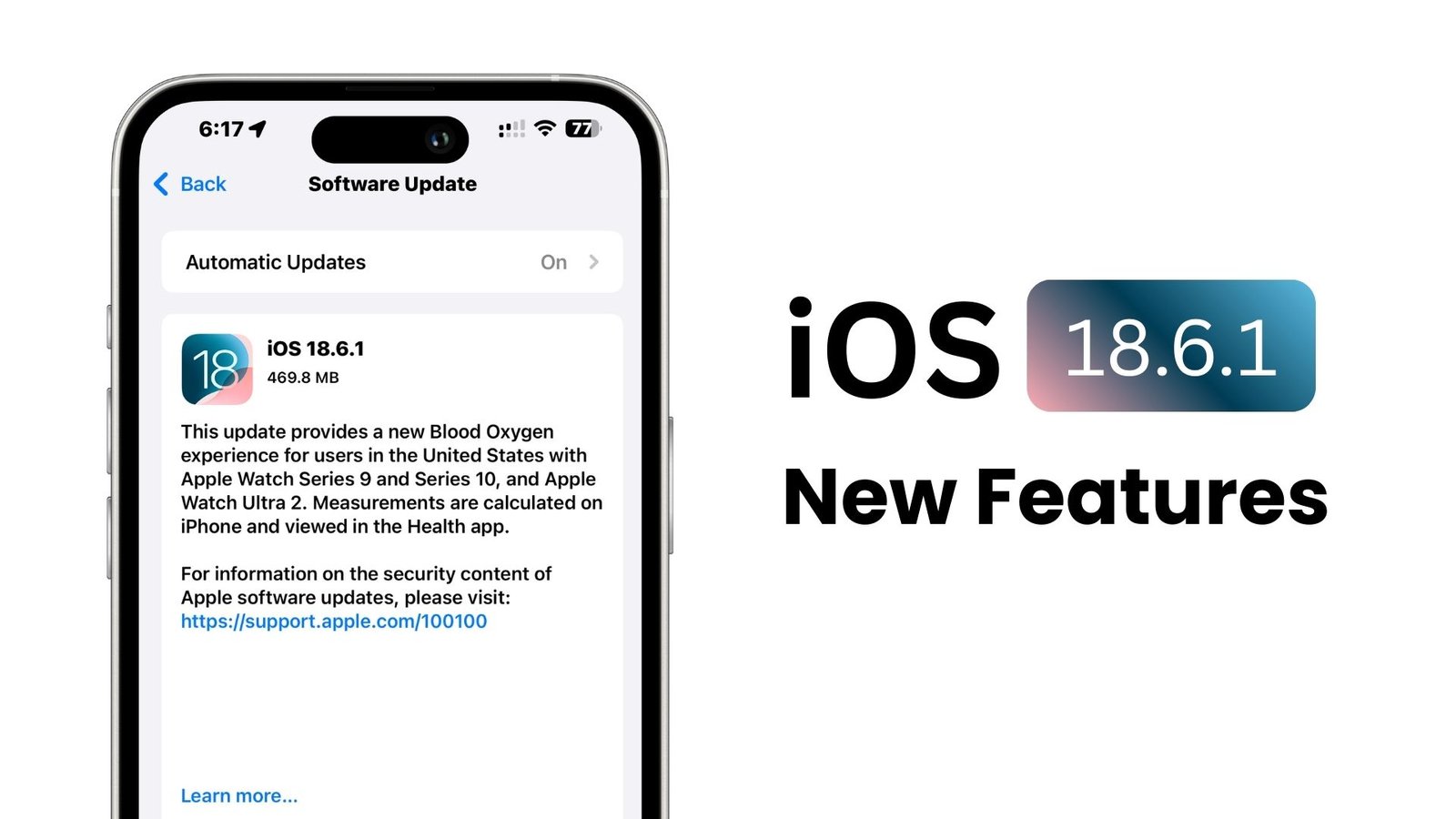
A small update just made a big difference. iOS 18.6.1 quietly switches on a redesigned Blood Oxygen experience for millions of Apple Watch users in the U.S. and it is the perfect moment to tune a few iPhone settings for better health, privacy, and day-to-day ease.
1) Blood Oxygen is back (for affected U.S. watches)
If you own Apple Watch Series 9, Series 10, or Ultra 2 that shipped without SpO₂ in the U.S., install iOS 18.6.1 on iPhone and watchOS 11.6.1 on Apple Watch. Readings now work again with a new flow that keeps the feature compliant in the U.S. (the iPhone processes the data). Open the Health app afterward to see fresh SpO₂ info.
2) Find your SpO₂ data in Health → Respiratory
Blood Oxygen no longer shows as a live reading on the watch for affected models. Instead, open Health → Browse → Respiratory → Blood Oxygen to view stats, trends, and ranges. Add it to Favorites so it appears on your Health Summary for quick checks.
3) Give Health the right permissions
In Health, tap your profile → Privacy → Apps/Devices and confirm your Apple Watch and any fitness apps can write/read Blood Oxygen. This prevents “missing data” after the update and keeps your long-term trend line clean.
4) Nudge the feature if it seems “missing”
Right after updating, some users see “Blood Oxygen app is no longer available” on the watch while the system finalizes enablement. Open the iPhone Health app (and, on the watch, open ECG once) to kick off the background asset download. Then check Health → Respiratory again.
5) Photos sharing bug from 18.6 is already fixed here
If you skipped iOS 18.6, know that 18.6.1 includes that prior fix for a Photos issue where Memory movies would not share. Update now and those share errors should be gone.
6) Keep the 18.6 security fixes—18.6.1 doesn’t add new ones
Apple packed iOS 18.6 with two dozen security patches, including a high-profile WebKit issue. iOS 18.6.1 focuses on the Blood Oxygen change, so treat this as your chance to get the earlier protections if you missed them.
7) Turn on Automatic Updates the smart way
Go to Settings → General → Software Update → Automatic Updates. Leave “Security Responses & System Files” on so urgent fixes land fast, but keep “iOS Updates” on as well if you prefer fully hands-off maintenance.
8) Check Background App Refresh for health apps
Open Settings → General → Background App Refresh and keep it on for Health, Fitness, and your trusted workout apps. With iPhone now processing SpO₂ for affected watches, steady background access helps sync data smoothly.
9) Add a Health widget for quick glance
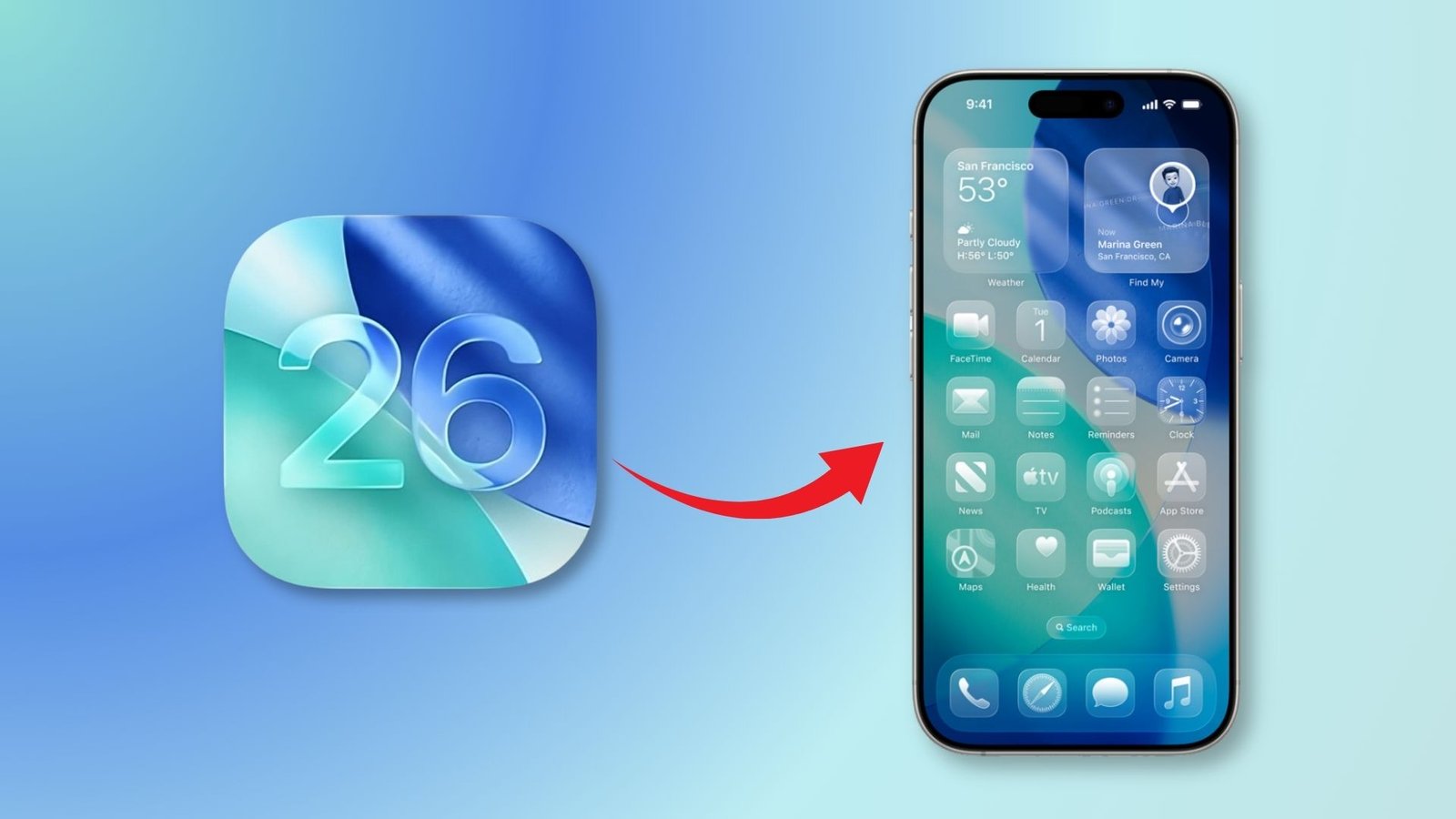
Press-hold the Home Screen → “+” → Health. Add a medium widget that surfaces Health Highlights. It gives you a fast path into Respiratory data without digging through menus.
10) Lock down privacy before you share
In Health → your profile → Data Access & Devices, review every app that can read Blood Oxygen. Remove anything you do not use. Then visit Settings → Privacy & Security to sanity-check Location Services, Bluetooth access, and App Tracking Transparency good hygiene after any system update.